Guide for Apple iOS Users on Installing PulseForce
iOS provides two installation options:
- PulseForce Lite (App Store, limited features)
- Full-featured PulseForce (install via AltStore/AltServer)
A) Install PulseForce Lite from the App Store
The App Store version is a Lite edition and does not include:
- ❌ Alpaca account binding
- ❌ Daily automated trading tasks
PulseForce Lite still supports:
- All built-in strategies
- Hyper-opt (for backtest usage)
- Fully configurable parameters
- Backtesting tasks
- Hyper-opt tasks
- Pulse signals visualization
- Energy system (IAP supported)
Ideal for strategy research and simulation.
B) Install Full-featured PulseForce via AltStore
If you want Alpaca binding and live automated trading on iOS, install PulseForce using AltStore / AltServer.
System Requirements
- Device: iPhone (iPhone 12 or newer recommended), iPad supported
- iOS Version: 15.0 or above
- Network: Stable Wi-Fi or 5G
- Computer: macOS or Windows with AltServer installed
Installation Steps
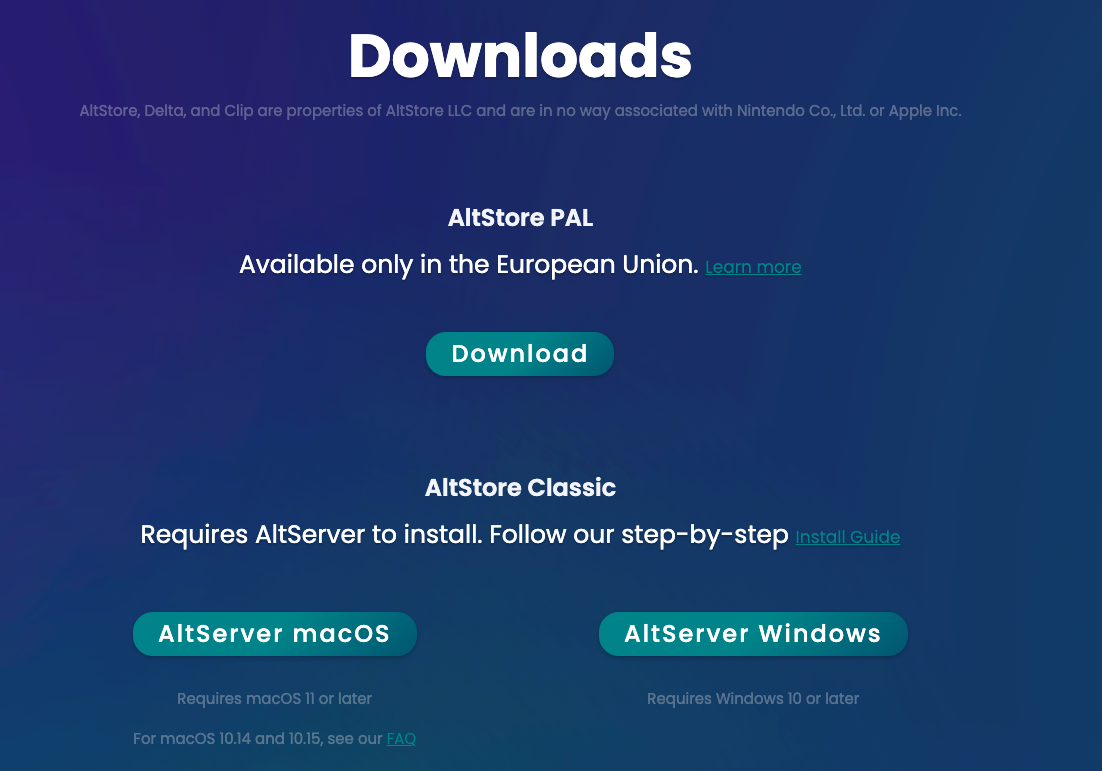
Step 1: Install AltServer on your computer
- Visit 👉 https://altstore.io/
- Download AltServer for macOS or Windows
- Install and ensure AltServer is running
- Check whether you are using AltStore PAL or AltStore Classic
(different versions require different source URLs later)
Step 2: Connect your device and install AltStore
- Connect iPhone/iPad to your computer
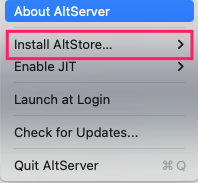
- In AltServer, click:
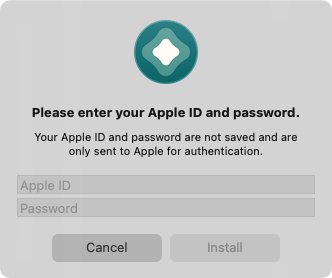
Install AltStore → Your Device - Enter the Apple ID/password used on the iPhone (for app signing)
Step 3: Trust the developer certificate
On your iPhone:
- Go to Settings → General → VPN & Device Management
- Find the profile associated with your Apple ID
- Tap Trust
Step 4: Add the PulseForce source and install the app
- Open AltStore on your device
- Go to Browse
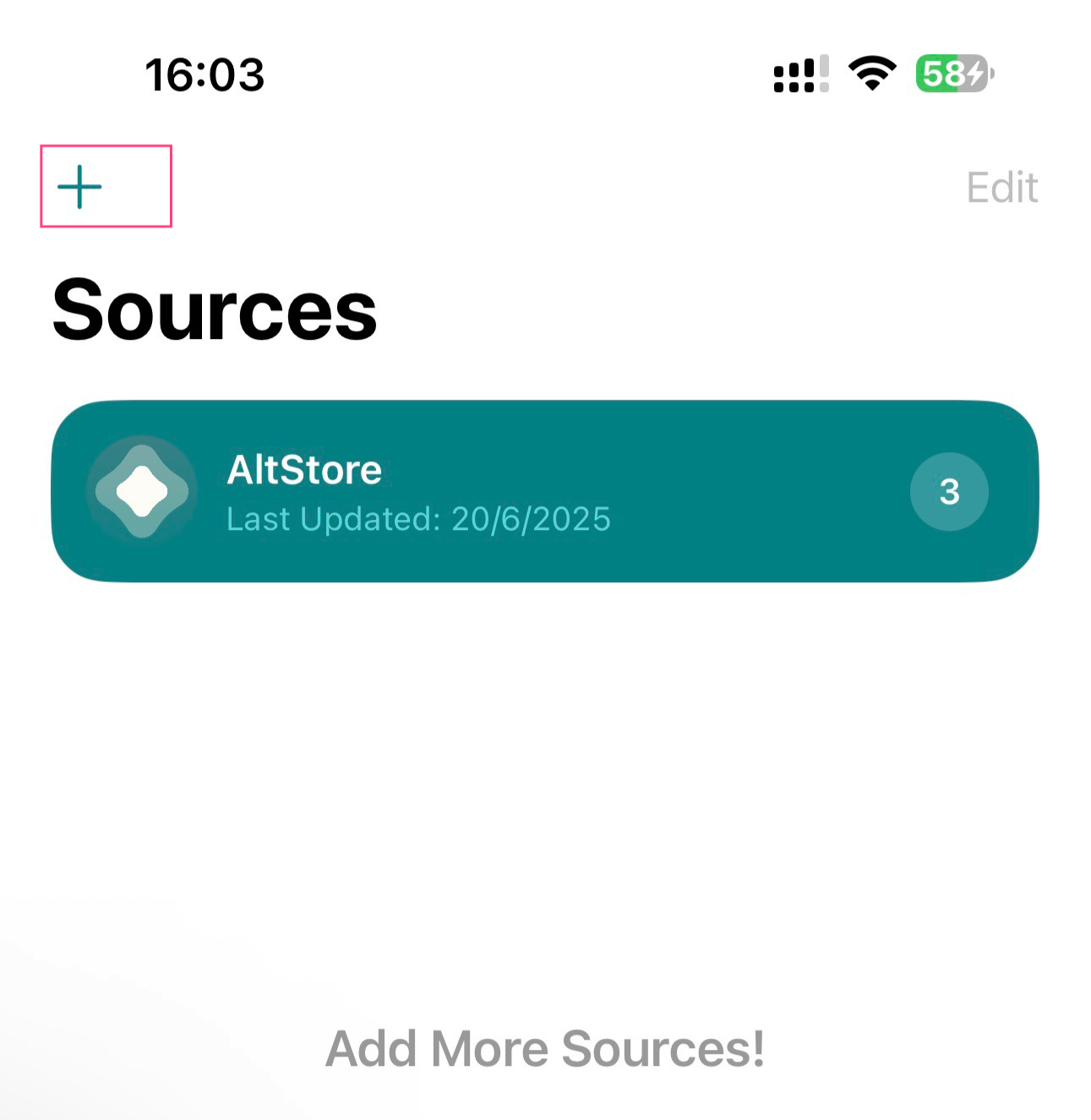
- Tap + → Add Source
- Enter the source URL according to your AltStore version:
For AltStore PAL users:
1 | https://pulse-dl.hiforce.ai/pulseforce/source.json |
For AltStore Classic users:
1 | https://pulse-dl.hiforce.ai/pulseforce/source-classicial.json |
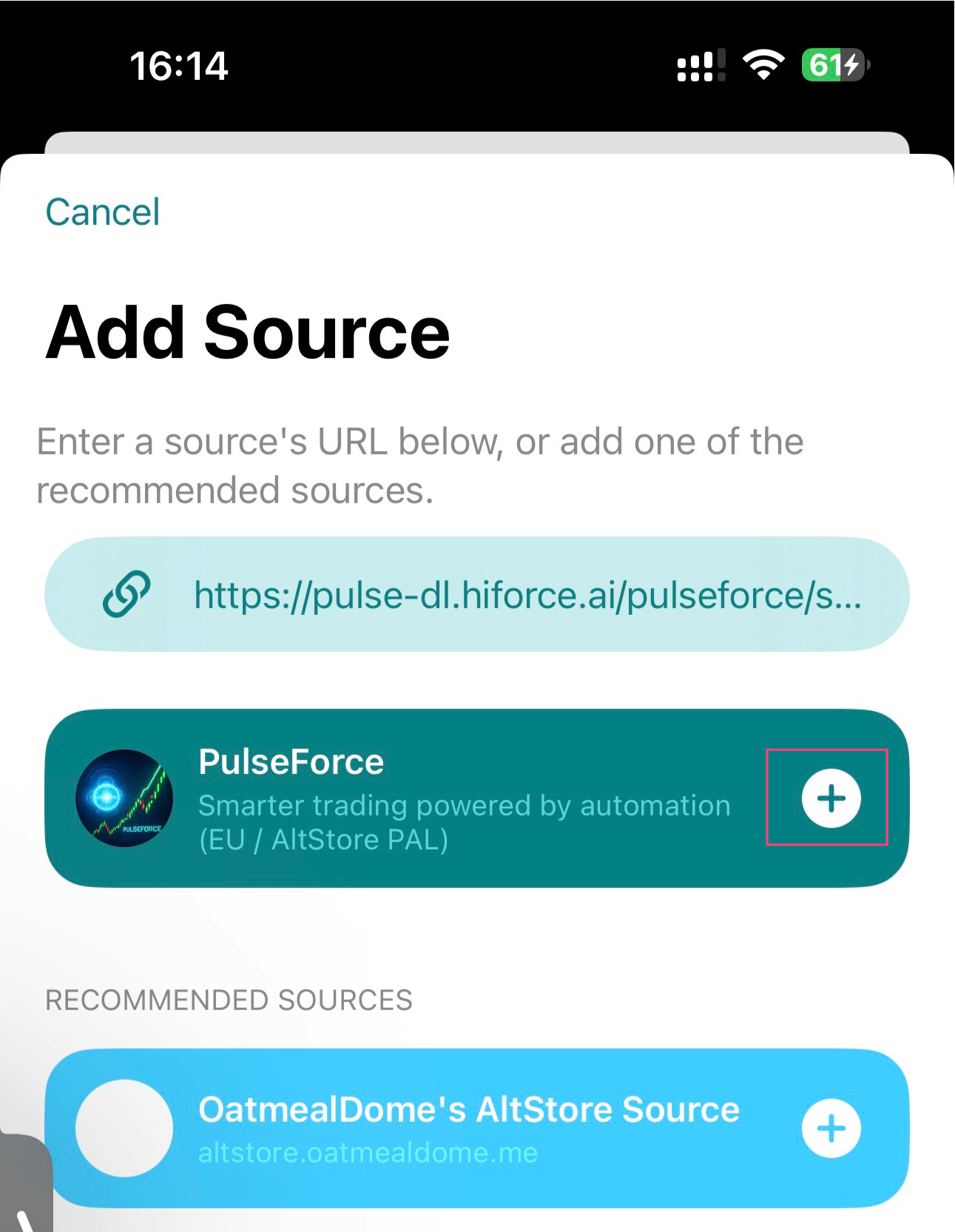
- After adding the source, PulseForce will appear in the list
- Tap Install
- After installation, PulseForce will appear on your home screen
Step 5: Keeping PulseForce active
- Free Apple ID → apps must be refreshed every 7 days
- AltStore will auto-refresh if:
- Your computer and phone are on the same Wi-Fi
- AltServer remains running
- With AltStore PAL paid subscription, the certificate is valid for 1 year
1.3. Login (Apple / Google / Email)
PulseForce supports:
- Sign in with Apple
- Sign in with Google
- Sign in with Email
You must log in before entering the main UI.